The False Sense of Security
You see the padlock. The URL starts with https://. You assume you're private.
You're not — not on a corporate network.
HTTPS encrypts the content of your traffic. But your network administrator doesn't need to read your messages to know a lot about you. They see everything else: every domain you visit, when you visit it, how long you stay, and how much data you transfer.
This lesson shows you exactly what the logs look like from the other side.
This lesson is about understanding corporate network visibility so you can make informed decisions about your own privacy at work. Everything described here is standard IT practice — not an attack.
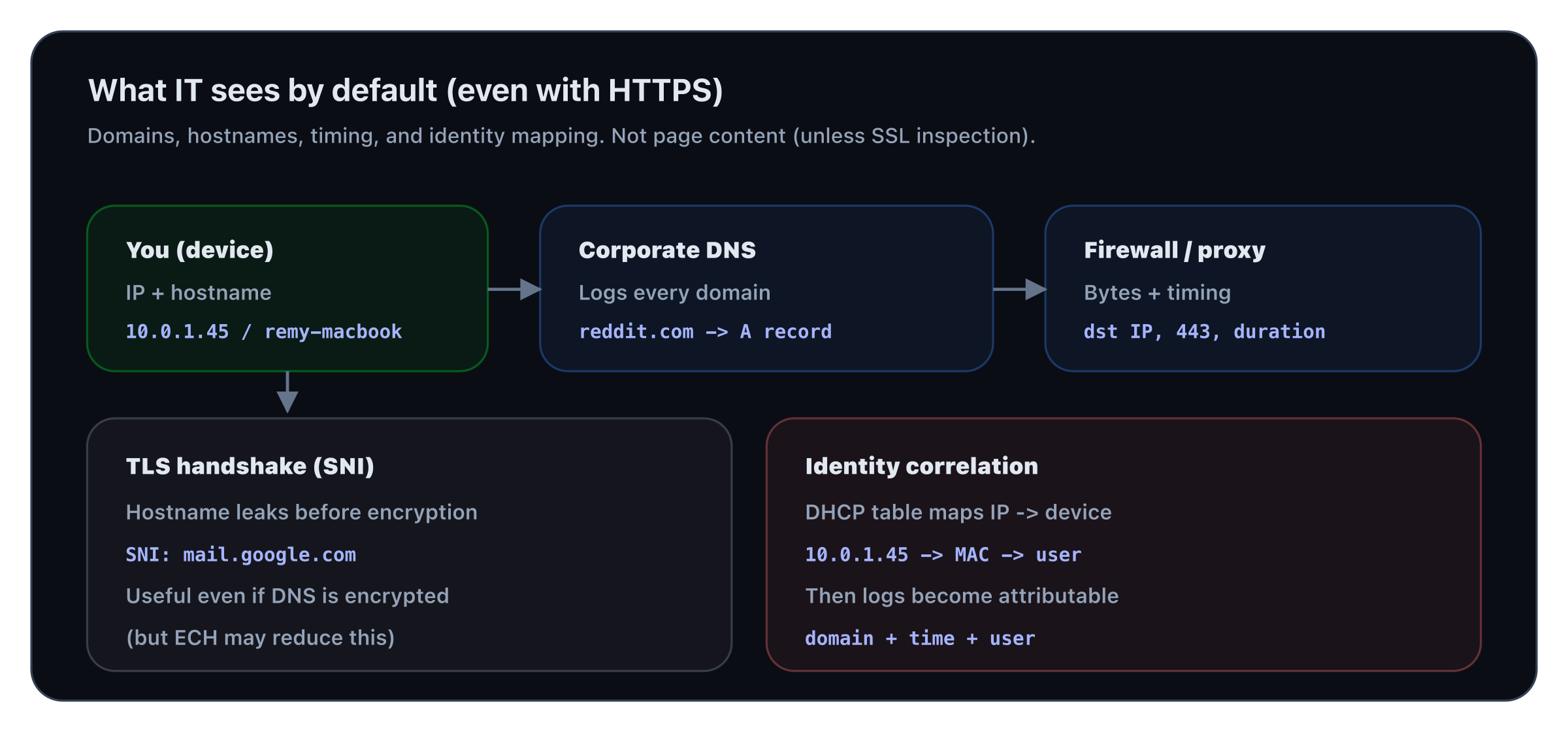
Even with HTTPS, domains + timing + device identity are visible by default (content is not, unless SSL inspection).
What Travels in Plain Sight
DNS queries — the most revealing log
Before your browser loads any page, it makes a DNS query: "What's the IP address of reddit.com?" That query goes through the corporate DNS resolver — and it's logged.
DNS queries are unencrypted by default. Even on HTTPS sites, the domain name (reddit.com, linkedin.com, your-bank.com) is visible to anyone on the network path — including your corporate DNS server.
What a DNS log entry looks like on the admin's side:
2026-03-05 09:14:22  10.0.1.45  → reddit.com
2026-03-05 09:14:23  10.0.1.45  → i.redd.it
2026-03-05 09:14:23  10.0.1.45  → www.redditstatic.com
2026-03-05 09:31:07  10.0.1.45  → linkedin.com
2026-03-05 10:02:44  10.0.1.45  → netflix.com
Your IP maps to your machine. Your machine is registered to your name in the DHCP table. The admin knows exactly who visited what, when.
SNI — the hostname in HTTPS
Even when traffic is encrypted with HTTPS, the Server Name Indication (SNI) field in the TLS handshake reveals the hostname — in plain text.
SNI was designed for servers that host multiple domains on one IP. It tells the server which certificate to use — before encryption begins. Your corporate firewall reads every SNI field in real time.
Firewall logs — volume and timing
Even without content inspection, firewall logs record:
Source IP     Destination IP   Port   Bytes   Duration
10.0.1.45  → 151.101.1.140    443    847KB   00:18:32
10.0.1.45  → 35.186.224.25    443    12MB    01:04:17
12MB over an hour to a single IP while you're supposed to be in a meeting tells a story — even without decrypting a single packet.
What the Admin Cannot See (by default)
Without SSL inspection (covered in the next lesson), your admin cannot see:
| Visible | Not visible (by default) | | ---------------------------- | -------------------------------- | | Domain visited (reddit.com) | Specific page (/r/netsec/...) | | Timestamp | Content of pages | | Volume of data | Passwords or form inputs | | Duration of session | Contents of emails (Gmail HTTPS) | | App vs browser (by port/SNI) | End-to-end encrypted messages |
The DHCP Trail — Who Are You?
Every device on the corporate network gets an IP from DHCP. That assignment is logged with:
- Your MAC address
- Your device hostname (e.g.
remy-macbook-pro) - Timestamp of connection
- Duration
Your hostname is broadcast to the DHCP server. If you named your laptop remy-macbook-pro, the admin can correlate every log entry to you by name — without even looking at authentication records.
Summary
On a corporate network, your IT admin can see — by default, without any special tools:
- Every domain you visit (DNS logs)
- The hostname of every HTTPS site (SNI)
- The volume and duration of every connection (firewall logs)
- Your device identity mapped to your IP (DHCP logs)
They cannot see (without SSL inspection): page content, passwords, or message content.
In the next lesson, you'll learn what happens when a company deploys SSL inspection — a corporate man-in-the-middle proxy that can decrypt and read your HTTPS traffic — and how to detect if it's active on your machine.